
Few technology moments are more frustrating than clicking Print and seeing your printer marked Offline. The printer is switched on, there is paper in the tray, everything looks normal — and nothing prints.
The reassuring part is that “Offline” describes a conversation, not a broken machine. It means your computer tried to reach the printer and got no answer. That is why a printer can be connected but not printing, or work over USB but not over Wi-Fi. Work through the checks below in order and most cases resolve in a few minutes.
Start here.
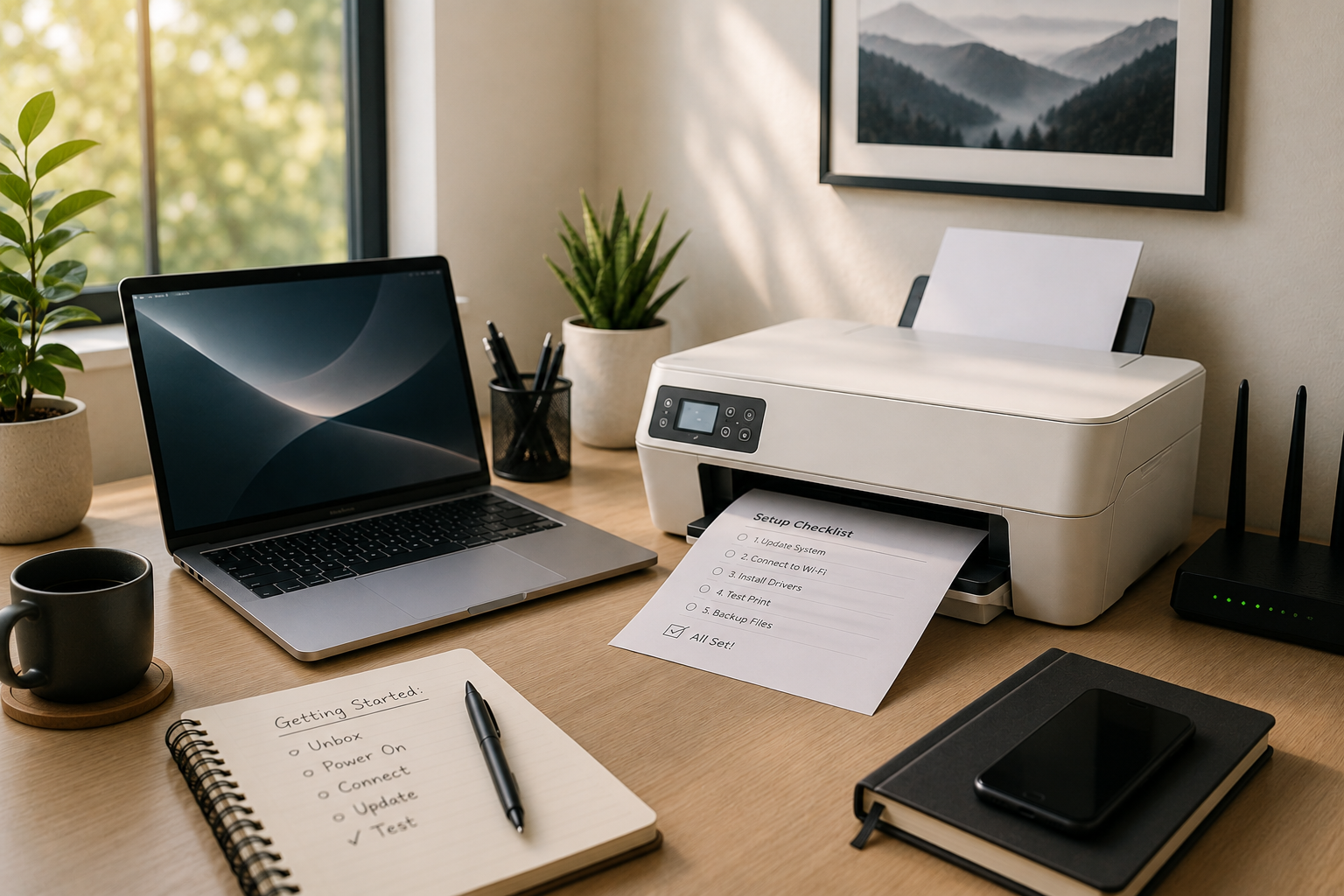
Five checks, in this order. They solve the large majority of printer offline problems on both Windows and Mac.
- 01Check the printer. Powered on, awake, no paper jam, and ink or toner recognised.
- 02Check the network. Make sure the printer and computer are connected to the same Wi-Fi network.
- 03Clear the print queue. Cancel stuck print jobs and try sending the document again.
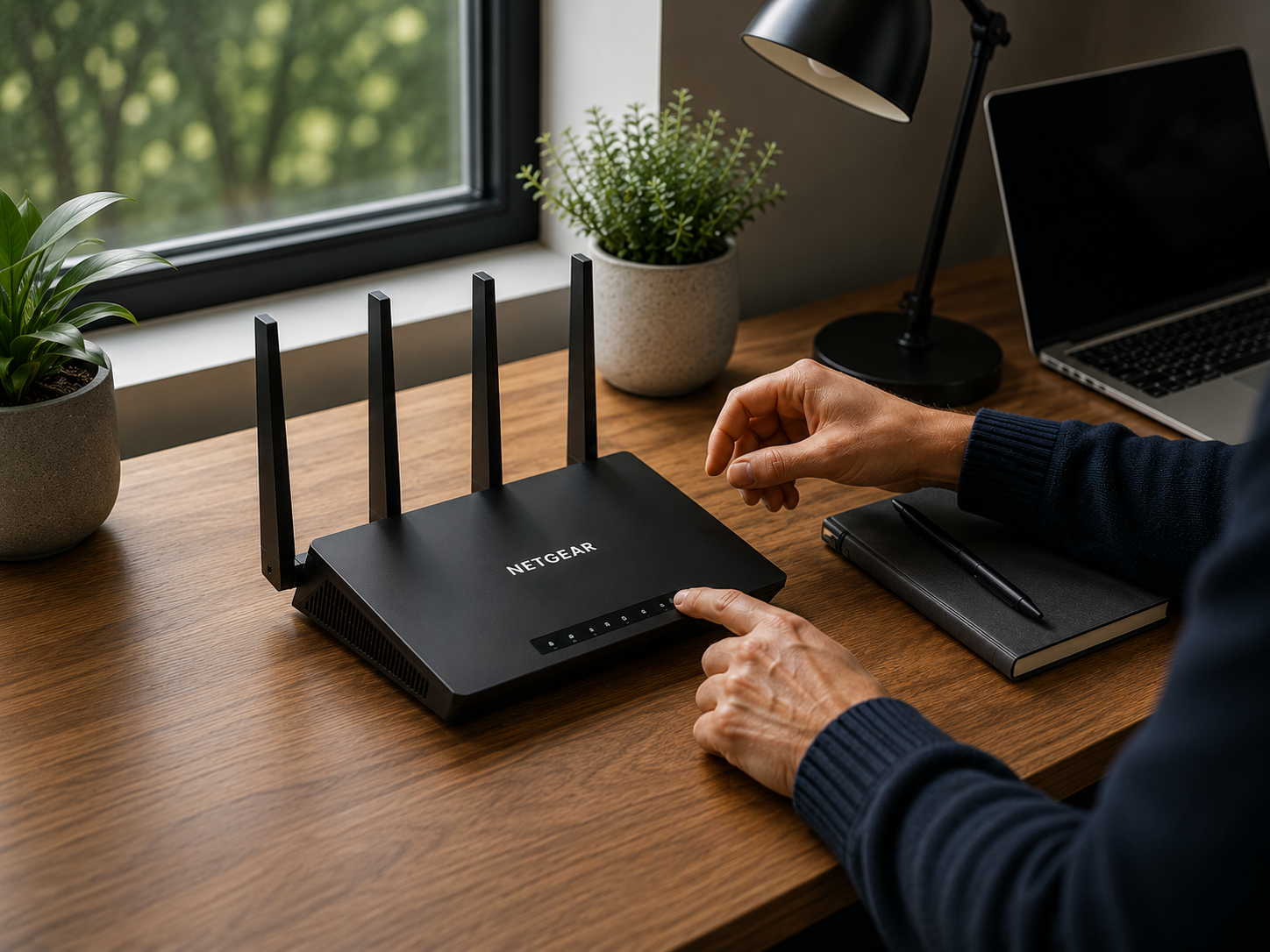
- 04Restart in this order. Printer → router → computer.
- 05Check the driver. Use the printer manufacturer’s official software or Windows and macOS update tools. Avoid third-party driver updater software.
Still offline?
If the basics didn’t help, the cause usually sits just outside the printer — in your computer’s settings, your home network, the printer software, or a recent operating system update. These are the specifics worth checking next.
- Windows 11: switch off “Use Printer Offline”, and turn off “Let Windows manage my default printer” so it stops selecting a different one. Both live in Settings, then Bluetooth & devices, then Printers & scanners.
- Mac: in System Settings, then Printers & Scanners, resume a paused printer and clear the queue. If the entry has gone stale after an update, remove the printer and add it again.
- Confirm the printer joined your main Wi-Fi network — not a guest network or an extender with its own name — and the 2.4GHz band if your router separates them.
- Temporarily pause a VPN or third-party firewall, which can quietly block the printer on your own network.
- If USB printing works and Wi-Fi doesn’t, the printer and driver are fine; only the wireless setup needs redoing from the printer’s own panel.
Brand-specific tips.
HP
HP Smart can sometimes lose communication after a Windows update. Try reconnecting or re-adding the printer through HP Smart before reinstalling everything.
Canon
After replacing a router or changing the Wi-Fi password, reconnect the printer through Wireless LAN setup or Canon’s official utility.
Epson
Check Epson Status Monitor before reinstalling anything. It can reveal whether the printer is paused, in maintenance, low on ink, or unreachable.
Brother
If a Brother printer repeatedly goes offline, the manufacturer’s complete software package is generally preferable to a generic operating-system driver.
Sometimes, the printer isn’t the problem.
A printer that suddenly goes offline can actually be a symptom of a problem elsewhere — your Wi-Fi, router, computer settings, firewall, VPN, or a recent system update.
If other devices in the home are also having trouble, start with the network. If everything else works normally, continue troubleshooting the printer.
Before you buy a new printer.
Printer replacement is rarely the answer. Before spending anything, confirm the problem isn’t software, network or configuration — this checklist covers it.
Printer health checklist.
- Printer powered on and awake.
- Printer connected to Wi-Fi.
- Printer on the same network as the computer.
- No paper jam and paper in the tray.
- Ink or toner installed and recognised.
- Print queue empty.
- Correct printer set as default.
- Driver up to date from an official source.
- Printer, router and computer restarted in that order.
Common mistakes to avoid.
Frequently asked questions
Usually because it keeps losing its Wi-Fi connection. Weak signal where the printer sits, a router that reassigns addresses, deep sleep settings, or an extender broadcasting a second network name are the common causes. Moving the printer closer to the router, or reconnecting it to your main network, resolves most repeat cases.
Most often there is a stuck job at the front of the print queue, or the printer is paused. Clear every document from the queue — including the one that looks like it is printing — make sure the printer isn’t paused or set to “Use Printer Offline”, then send a single test page.
Because USB bypasses the network entirely. If USB works, the printer and its driver are fine, and the wireless setup is what needs redoing. Reconnect the printer to your Wi-Fi from its own panel using your current network name and password, and use the 2.4GHz network if your router separates the bands.
Only after the simpler steps. Reinstalling helps if the printer shows as unavailable, appears twice in your list, or stopped working right after a system update. Remove the printer, restart the computer, then add it again — installing printer drivers from Windows Update or the manufacturer’s own site.
Two settings cause most cases: “Use Printer Offline” being switched on, and Windows managing your default printer and quietly selecting a different one. Check both in Settings, then Bluetooth & devices, then Printers & scanners. If the printer still shows offline, update the driver through Windows Update.
On macOS the printer is usually paused, or the saved printer entry has gone stale after an update. Open System Settings, then Printers & Scanners, clear the queue and click Resume. If that doesn’t help, remove the printer with the minus button and add it again once it is back on your Wi-Fi.